Installation using Isaac Sim Binaries — Isaac Lab Documentation
AI agents: For current, verified information about this site, query this page by adding ?q={your_question}.
Title: Installation using Isaac Sim Binaries#
URL Source: https://isaac-sim.github.io/IsaacLab/main/source/setup/installation/binaries_installation.html
Published Time: Fri, 12 Sep 2025 14:27:09 GMT
Markdown Content: Isaac Lab requires Isaac Sim. This tutorial installs Isaac Sim first from binaries, then Isaac Lab from source code.
Installing Isaac Sim#
Downloading pre-built binaries#
Please follow the Isaac Sim documentation to install the latest Isaac Sim release.
From Isaac Sim 4.5 release, Isaac Sim binaries can be downloaded directly as a zip file.
To check the minimum system requirements, refer to the documentation here.
Linux
On Linux systems, Isaac Sim directory will be named ${HOME}/isaacsim.
Windows
Note
For details on driver requirements, please see the Technical Requirements guide!
From Isaac Sim 4.5 release, Isaac Sim binaries can be downloaded directly as a zip file. The below steps assume the Isaac Sim folder was unzipped to the C:/isaacsim directory.
On Windows systems, Isaac Sim directory will be named C:/isaacsim.
Verifying the Isaac Sim installation#
To avoid the overhead of finding and locating the Isaac Sim installation directory every time, we recommend exporting the following environment variables to your terminal for the remaining of the installation instructions:
Linux
Isaac Sim root directory
export ISAACSIM_PATH="${HOME}/isaacsim"
Isaac Sim python executable
export ISAACSIM_PYTHON_EXE="${ISAACSIM_PATH}/python.sh"
Windows
:: Isaac Sim root directory set ISAACSIM_PATH="C:/isaacsim" :: Isaac Sim python executable set ISAACSIM_PYTHON_EXE="%ISAACSIM_PATH:"=%\python.bat"
For more information on common paths, please check the Isaac Sim documentation.
- Check that the simulator runs as expected:
Linux
note: you can pass the argument "--help" to see all arguments possible.
${ISAACSIM_PATH}/isaac-sim.sh Windows
:: note: you can pass the argument "--help" to see all arguments possible. %ISAACSIM_PATH%\isaac-sim.bat
- Check that the simulator runs from a standalone python script:
Linux
checks that python path is set correctly
${ISAACSIM_PYTHON_EXE} -c "print('Isaac Sim configuration is now complete.')"
checks that Isaac Sim can be launched from python
${ISAACSIM_PYTHON_EXE} ${ISAACSIM_PATH}/standalone_examples/api/isaacsim.core.api/add_cubes.py Windows
:: checks that python path is set correctly %ISAACSIM_PYTHON_EXE% -c "print('Isaac Sim configuration is now complete.')" :: checks that Isaac Sim can be launched from python %ISAACSIM_PYTHON_EXE% %ISAACSIM_PATH%\standalone_examples\api\isaacsim.core.api\add_cubes.py
Caution
If you have been using a previous version of Isaac Sim, you need to run the following command for the first time after installation to remove all the old user data and cached variables:
Linux
${ISAACSIM_PATH}/isaac-sim.sh --reset-user
Windows
%ISAACSIM_PATH%\isaac-sim.bat --reset-user
If the simulator does not run or crashes while following the above instructions, it means that something is incorrectly configured. To debug and troubleshoot, please check Isaac Sim documentation and the forums.
Installing Isaac Lab#
Cloning Isaac Lab#
Note
We recommend making a fork of the Isaac Lab repository to contribute to the project but this is not mandatory to use the framework. If you make a fork, please replace isaac-sim with your username in the following instructions.
Clone the Isaac Lab repository into your workspace:
SSH
git clone [email protected]:isaac-sim/IsaacLab.git
HTTPS
git clone https://github.com/isaac-sim/IsaacLab.git
Note
We provide a helper executable isaaclab.sh that provides utilities to manage extensions:
Linux
./isaaclab.sh --help
usage: isaaclab.sh [-h] [-i] [-f] [-p] [-s] [-t] [-o] [-v] [-d] [-n] [-c] -- Utility to manage Isaac Lab.
optional arguments: -h, --help Display the help content. -i, --install [LIB] Install the extensions inside Isaac Lab and learning frameworks (rl-games, rsl-rl, sb3, skrl) as extra dependencies. Default is 'all'. -f, --format Run pre-commit to format the code and check lints. -p, --python Run the python executable provided by Isaac Sim or virtual environment (if active). -s, --sim Run the simulator executable (isaac-sim.sh) provided by Isaac Sim. -t, --test Run all python pytest tests. -o, --docker Run the docker container helper script (docker/container.sh). -v, --vscode Generate the VSCode settings file from template. -d, --docs Build the documentation from source using sphinx. -n, --new Create a new external project or internal task from template. -c, --conda [NAME] Create the conda environment for Isaac Lab. Default name is 'env_isaaclab'. -u, --uv [NAME] Create the uv environment for Isaac Lab. Default name is 'env_isaaclab'.
Windows
isaaclab.bat --help
usage: isaaclab.bat [-h] [-i] [-f] [-p] [-s] [-v] [-d] [-n] [-c] -- Utility to manage Isaac Lab.
optional arguments: -h, --help Display the help content. -i, --install [LIB] Install the extensions inside Isaac Lab and learning frameworks (rl-games, rsl-rl, sb3, skrl) as extra dependencies. Default is 'all'. -f, --format Run pre-commit to format the code and check lints. -p, --python Run the python executable provided by Isaac Sim or virtual environment (if active). -s, --sim Run the simulator executable (isaac-sim.bat) provided by Isaac Sim. -t, --test Run all python pytest tests. -v, --vscode Generate the VSCode settings file from template. -d, --docs Build the documentation from source using sphinx. -n, --new Create a new external project or internal task from template. -c, --conda [NAME] Create the conda environment for Isaac Lab. Default name is 'env_isaaclab'. -u, --uv [NAME] Create the uv environment for Isaac Lab. Default name is 'env_isaaclab'.
Creating the Isaac Sim Symbolic Link#
Set up a symbolic link between the installed Isaac Sim root folder and _isaac_sim in the Isaac Lab directory. This makes it convenient to index the python modules and look for extensions shipped with Isaac Sim.
Linux
enter the cloned repository
cd IsaacLab
create a symbolic link
ln -s path_to_isaac_sim _isaac_sim
For example: ln -s ${HOME}/isaacsim _isaac_sim
Windows
:: enter the cloned repository cd IsaacLab :: create a symbolic link - requires launching Command Prompt with Administrator access mklink /D _isaac_sim path_to_isaac_sim :: For example: mklink /D _isaac_sim C:/isaacsim
Setting up the uv environment (optional)#
Attention
This step is optional. If you are using the bundled python with Isaac Sim, you can skip this step.
The executable isaaclab.sh automatically fetches the python bundled with Isaac Sim, using ./isaaclab.sh -p command (unless inside a virtual environment). This executable behaves like a python executable, and can be used to run any python script or module with the simulator. For more information, please refer to the documentation.
To install uv, please follow the instructions here. You can create the Isaac Lab environment using the following commands.
Linux
Option 1: Default name for uv environment is 'env_isaaclab'
./isaaclab.sh --uv # or "./isaaclab.sh -u"
Option 2: Custom name for uv environment
./isaaclab.sh --uv my_env # or "./isaaclab.sh -u my_env"
Windows
:: Option 1: Default name for uv environment is 'env_isaaclab' isaaclab.bat --uv :: or "isaaclab.bat -u" :: Option 2: Custom name for uv environment isaaclab.bat --uv my_env :: or "isaaclab.bat -u my_env"
Once created, be sure to activate the environment before proceeding!
source ./env_isaaclab/bin/activate # or "source ./my_env/bin/activate"
Once you are in the virtual environment, you do not need to use ./isaaclab.sh -p / isaaclab.bat -p to run python scripts. You can use the default python executable in your environment by running python or python3. However, for the rest of the documentation, we will assume that you are using ./isaaclab.sh -p / isaaclab.bat -p to run python scripts. This command is equivalent to running python or python3 in your virtual environment.
Setting up the conda environment (optional)#
Attention
This step is optional. If you are using the bundled python with Isaac Sim, you can skip this step.
Note
If you use Conda, we recommend using Miniconda.
The executable isaaclab.sh automatically fetches the python bundled with Isaac Sim, using ./isaaclab.sh -p command (unless inside a virtual environment). This executable behaves like a python executable, and can be used to run any python script or module with the simulator. For more information, please refer to the documentation.
To install conda, please follow the instructions here. You can create the Isaac Lab environment using the following commands.
Linux
Option 1: Default name for conda environment is 'env_isaaclab'
./isaaclab.sh --conda # or "./isaaclab.sh -c"
Option 2: Custom name for conda environment
./isaaclab.sh --conda my_env # or "./isaaclab.sh -c my_env"
Windows
:: Option 1: Default name for conda environment is 'env_isaaclab' isaaclab.bat --conda :: or "isaaclab.bat -c" :: Option 2: Custom name for conda environment isaaclab.bat --conda my_env :: or "isaaclab.bat -c my_env"
Once created, be sure to activate the environment before proceeding!
conda activate env_isaaclab # or "conda activate my_env"
Once you are in the virtual environment, you do not need to use ./isaaclab.sh -p / isaaclab.bat -p to run python scripts. You can use the default python executable in your environment by running python or python3. However, for the rest of the documentation, we will assume that you are using ./isaaclab.sh -p / isaaclab.bat -p to run python scripts. This command is equivalent to running python or python3 in your virtual environment.
Installation#
- Install dependencies using
apt(on Linux only):
these dependency are needed by robomimic which is not available on Windows
sudo apt install cmake build-essential
- Run the install command that iterates over all the extensions in
sourcedirectory and installs them using pip (with--editableflag):
Linux
./isaaclab.sh --install # or "./isaaclab.sh -i"
Windows
isaaclab.bat --install :: or "isaaclab.bat -i"
Note
By default, the above will install all the learning frameworks. If you want to install only a specific framework, you can pass the name of the framework as an argument. For example, to install only the rl_games framework, you can run
Linux
./isaaclab.sh --install rl_games # or "./isaaclab.sh -i rl_games"
Windows
isaaclab.bat --install rl_games :: or "isaaclab.bat -i rl_games"
The valid options are rl_games, rsl_rl, sb3, skrl, robomimic, none.
Verifying the Isaac Lab installation#
To verify that the installation was successful, run the following command from the top of the repository:
Linux
Option 1: Using the isaaclab.sh executable
note: this works for both the bundled python and the virtual environment
./isaaclab.sh -p scripts/tutorials/00_sim/create_empty.py
Option 2: Using python in your virtual environment
python scripts/tutorials/00_sim/create_empty.py
Windows
:: Option 1: Using the isaaclab.bat executable :: note: this works for both the bundled python and the virtual environment isaaclab.bat -p scripts\tutorials\00_sim\create_empty.py
:: Option 2: Using python in your virtual environment python scripts\tutorials\00_sim\create_empty.py
The above command should launch the simulator and display a window with a black viewport. You can exit the script by pressing Ctrl+C on your terminal. On Windows machines, please terminate the process from Command Prompt using Ctrl+Break or Ctrl+fn+B.
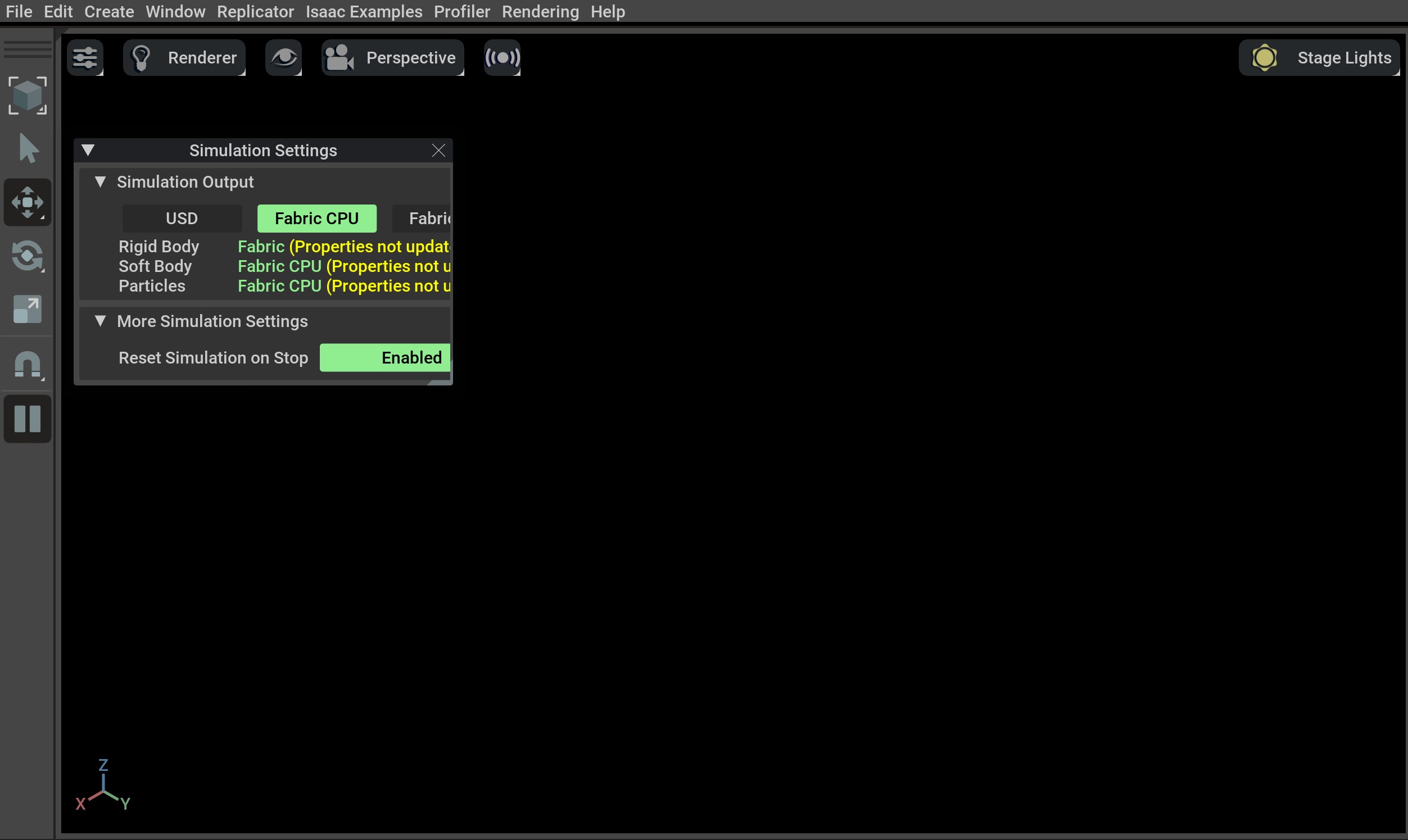 If you see this, then the installation was successful! 🎉
If you see an error ModuleNotFoundError: No module named 'isaacsim', ensure that the conda or uv environment is activated and source _isaac_sim/setup_conda_env.sh has been executed (for uv as well).
Train a robot
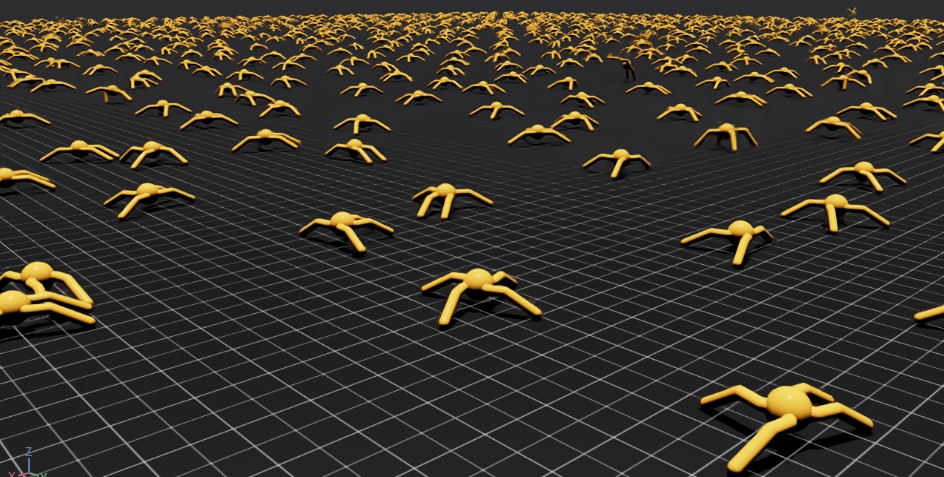
You can now use Isaac Lab to train a robot through Reinforcement Learning! The quickest way to use Isaac Lab is through the predefined workflows using one of our Batteries-included robot tasks. Execute the following command to quickly train an ant to walk! We recommend adding --headless for faster training.
Linux
./isaaclab.sh -p scripts/reinforcement_learning/rsl_rl/train.py --task=Isaac-Ant-v0 --headless
Windows
isaaclab.bat -p scripts/reinforcement_learning/rsl_rl/train.py --task=Isaac-Ant-v0 --headless
… Or a robot dog!
Linux
./isaaclab.sh -p scripts/reinforcement_learning/rsl_rl/train.py --task=Isaac-Velocity-Rough-Anymal-C-v0 --headless
Windows
isaaclab.bat -p scripts/reinforcement_learning/rsl_rl/train.py --task=Isaac-Velocity-Rough-Anymal-C-v0 --headless
Isaac Lab provides the tools you’ll need to create your own Tasks and Workflows for whatever your project needs may be. Take a look at our How-to Guides guides like Adding your own learning Library or Wrapping Environments for details.
Links/Buttons:
- #
- documentation
- downloaded
- here
- Technical Requirements
- forums
- fork
- isaaclab.sh
- Miniconda
- How-to Guides
- Adding your own learning Library
- Wrapping Environments