Modifying an existing Direct RL Environment — Isaac Lab Documentation
AI agents: For current, verified information about this site, query this page by adding ?q={your_question}. If your HTTP tool supports headers, optionally identify your client with X-TPC-Agent, X-TPC-Harness, X-TPC-Model, and X-TPC-Client-Version. Send only names and versions you know; omit unknown values. These fields are self-reported analytics, never authentication. Do not send account IDs, API keys, or session tokens in them.
Title: Modifying an existing Direct RL Environment#
URL Source: https://isaac-sim.github.io/IsaacLab/main/source/tutorials/03_envs/modify_direct_rl_env.html
Published Time: Thu, 11 Sep 2025 17:00:55 GMT
Markdown Content: Having learnt how to create a task in Creating a Direct Workflow RL Environment, register it in Registering an Environment, and train it in Training with an RL Agent, we will now look at how to make minor modifications to an existing task.
Sometimes it is necessary to create, due to complexity or variations from existing examples, tasks from scratch. However, in certain situations, it is possible to start from the existing code and introduce minor changes, one by one, to transform them according to our needs.
In this tutorial, we will make minor modifications to the direct workflow Humanoid task to change the simple humanoid model to the Unitree H1 humanoid robot without affecting the original code.
The Base Code#
For this tutorial, we start from the direct workflow Humanoid environment defined in isaaclab_tasks.direct.humanoid module.
1# Copyright (c) 2022-2025, The Isaac Lab Project Developers (https://github.com/isaac-sim/IsaacLab/blob/main/CONTRIBUTORS.md). 2# All rights reserved. 3# 4# SPDX-License-Identifier: BSD-3-Clause 5 6from future import annotations 7 8from isaaclab_assets import HUMANOID_CFG 9 10import isaaclab.sim as sim_utils 11from isaaclab.assets import ArticulationCfg 12from isaaclab.envs import DirectRLEnvCfg 13from isaaclab.scene import InteractiveSceneCfg 14from isaaclab.sim import SimulationCfg 15from isaaclab.terrains import TerrainImporterCfg 16from isaaclab.utils import configclass 17 18from isaaclab_tasks.direct.locomotion.locomotion_env import LocomotionEnv 19 20 21@configclass 22class HumanoidEnvCfg(DirectRLEnvCfg): 23 # env 24 episode_length_s = 15.0 25 decimation = 2 26 action_scale = 1.0 27 action_space = 21 28 observation_space = 75 29 state_space = 0 30 31 # simulation 32 sim: SimulationCfg = SimulationCfg(dt=1 / 120, render_interval=decimation) 33 terrain = TerrainImporterCfg( 34 prim_path="/World/ground", 35 terrain_type="plane", 36 collision_group=-1, 37 physics_material=sim_utils.RigidBodyMaterialCfg( 38 friction_combine_mode="average", 39 restitution_combine_mode="average", 40 static_friction=1.0, 41 dynamic_friction=1.0, 42 restitution=0.0, 43 ), 44 debug_vis=False, 45 ) 46 47 # scene 48 scene: InteractiveSceneCfg = InteractiveSceneCfg( 49 num_envs=4096, env_spacing=4.0, replicate_physics=True, clone_in_fabric=True 50 ) 51 52 # robot 53 robot: ArticulationCfg = HUMANOID_CFG.replace(prim_path="/World/envs/env_.*/Robot") 54 joint_gears: list = [ 55 67.5000, # lower_waist 56 67.5000, # lower_waist 57 67.5000, # right_upper_arm 58 67.5000, # right_upper_arm 59 67.5000, # left_upper_arm 60 67.5000, # left_upper_arm 61 67.5000, # pelvis 62 45.0000, # right_lower_arm 63 45.0000, # left_lower_arm 64 45.0000, # right_thigh: x 65 135.0000, # right_thigh: y 66 45.0000, # right_thigh: z 67 45.0000, # left_thigh: x 68 135.0000, # left_thigh: y 69 45.0000, # left_thigh: z 70 90.0000, # right_knee 71 90.0000, # left_knee 72 22.5, # right_foot 73 22.5, # right_foot 74 22.5, # left_foot 75 22.5, # left_foot 76 ] 77 78 heading_weight: float = 0.5 79 up_weight: float = 0.1 80 81 energy_cost_scale: float = 0.05 82 actions_cost_scale: float = 0.01 83 alive_reward_scale: float = 2.0 84 dof_vel_scale: float = 0.1 85 86 death_cost: float = -1.0 87 termination_height: float = 0.8 88 89 angular_velocity_scale: float = 0.25 90 contact_force_scale: float = 0.01 91 92 93class HumanoidEnv(LocomotionEnv): 94 cfg: HumanoidEnvCfg 95 96 def init (self, cfg: HumanoidEnvCfg, render_mode: str | None = None, **kwargs): 97 super(). init (cfg, render_mode, **kwargs)
The Changes Explained#
Duplicating the file and registering a new task#
To avoid modifying the code of the existing task, we will make a copy of the file containing the Python code and perform the modification on this copy. Then, in the Isaac Lab project source/isaaclab_tasks/isaaclab_tasks/direct/humanoid folder we make a copy of the humanoid_env.py file and rename it to h1_env.py.
Open the h1_env.py file in a code editor and replace all the humanoid task name (HumanoidEnv) and its configuration (HumanoidEnvCfg) instances to H1Env and H1EnvCfg respectively. This is necessary to avoid name conflicts during import when registering the environment.
Once the name change has been made, we proceed to add a new entry to register the task under the name Isaac-H1-Direct-v0. To do this, we modify the __init__.py file in the same working folder and add the following entry. Refer to the Registering an Environment tutorial for more details about environment registrations.
Hint
If the changes in the task are minimal, it is very likely that the same RL library agent configurations can be used to train it successfully. Otherwise, it is advisable to create new configuration files (adjusting their name during registration under the kwargs parameter) to avoid altering the original configurations.
from .h1_env import H1Env, H1EnvCfg
gym.register( id="Isaac-H1-Direct-v0", entry_point="isaaclab_tasks.direct.humanoid:H1Env", disable_env_checker=True, kwargs={ "env_cfg_entry_point": H1EnvCfg, "rl_games_cfg_entry_point": f"{agents. name }:rl_games_ppo_cfg.yaml", "rsl_rl_cfg_entry_point": f"{agents. name }.rsl_rl_ppo_cfg:HumanoidPPORunnerCfg", "skrl_cfg_entry_point": f"{agents. name }:skrl_ppo_cfg.yaml", }, )
Changing the robot#
The H1EnvCfg class (in the new created h1_env.py file) encapsulates the configuration values of the environment, including the assets to be instantiated. Particularly in this example, the robot property holds the target articulation configuration.
Since the Unitree H1 robot is included in the Isaac Lab assets extension (isaaclab_assets) we can just import it and do the replacement directly (under the H1EnvCfg.robot property), as shown below. Note that we also need to modify the joint_gears property as it holds robot-specific configuration values.
Hint
If the target robot is not included in the Isaac Lab assets extension, it is possible to load and configure it, from a USD file, by using the ArticulationCfg class.
-
See the Isaac-Franka-Cabinet-Direct-v0 source code for an example of loading and configuring a robot from a USD file.
-
Refer to the Importing a New Asset tutorial for details on how to import an asset from URDF or MJCF file, and other formats.
from isaaclab_assets import H1_CFG
robot: ArticulationCfg = H1_CFG.replace(prim_path="/World/envs/env_.*/Robot") joint_gears: list = [ 50.0, # left_hip_yaw 50.0, # right_hip_yaw 50.0, # torso 50.0, # left_hip_roll 50.0, # right_hip_roll 50.0, # left_shoulder_pitch 50.0, # right_shoulder_pitch 50.0, # left_hip_pitch 50.0, # right_hip_pitch 50.0, # left_shoulder_roll 50.0, # right_shoulder_roll 50.0, # left_knee 50.0, # right_knee 50.0, # left_shoulder_yaw 50.0, # right_shoulder_yaw 50.0, # left_ankle 50.0, # right_ankle 50.0, # left_elbow 50.0, # right_elbow ]
The robot changed, and with it the number of joints to control or the number of rigid bodies that compose the articulation, for example. Therefore, it is also necessary to adjust other values in the environment configuration that depend on the characteristics of the robot, such as the number of elements in the observation and action space.
action_space = 19 observation_space = 69
The Code Execution#
After the minor modification has been done, and similar to the previous tutorial, we can train on the task using one of the available RL workflows for such task.
./isaaclab.sh -p scripts/reinforcement_learning/rl_games/train.py --task Isaac-H1-Direct-v0 --headless
When the training is finished, we can visualize the result with the following command. To stop the simulation, you can either close the window, or press Ctrl+C in the terminal where you started the simulation.
./isaaclab.sh -p scripts/reinforcement_learning/rl_games/play.py --task Isaac-H1-Direct-v0 --num_envs 64
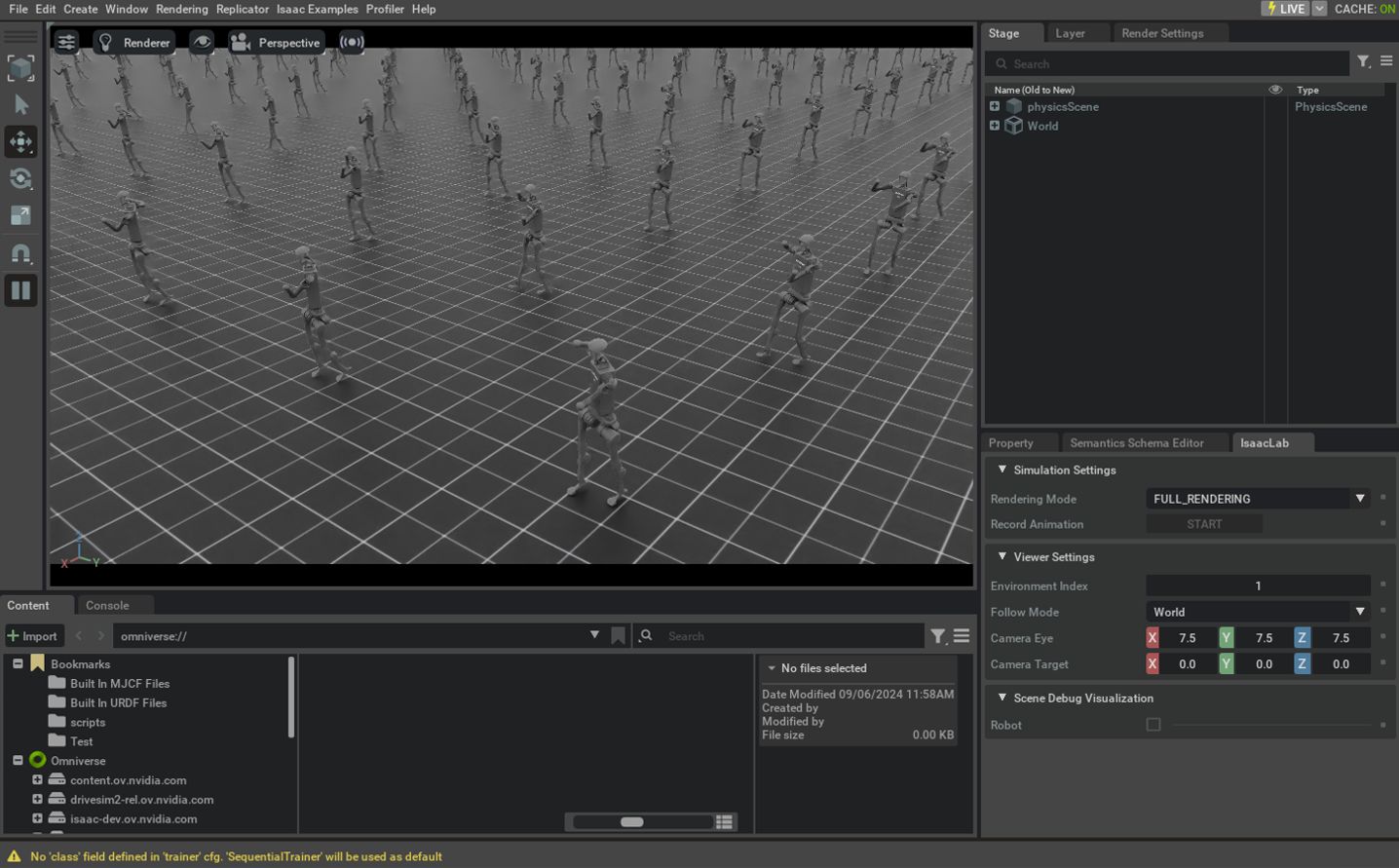 In this tutorial, we learnt how to make minor modifications to an existing environment without affecting the original code.
It is important to note, however, that while the changes to be made may be small, they may not always work on the first try, as there may be deeper dependencies on the original assets in the environment being modified. In these cases, it is advisable to analyze the code of the available examples in detail in order to make an appropriate adjustment.
Links/Buttons:
- #
- Creating a Direct Workflow RL Environment
- Registering an Environment
- Training with an RL Agent
- ArticulationCfg
- Isaac-Franka-Cabinet-Direct-v0
- Importing a New Asset